

Scammers Now Sending Fake Alerts Straight To Your Phone’s Calendar
A warning for anyone using Google Calendar: Watch out for fake PayPal billing notices claiming you've been charged hundreds of dollars.
These invitations are designed to get you to call fraudulent customer support numbers. I received two of them. Here's how the scam works and how to stop it from showing up on your calendar.
Fake PayPal Billing Scam Is Showing Up in Google Calendars
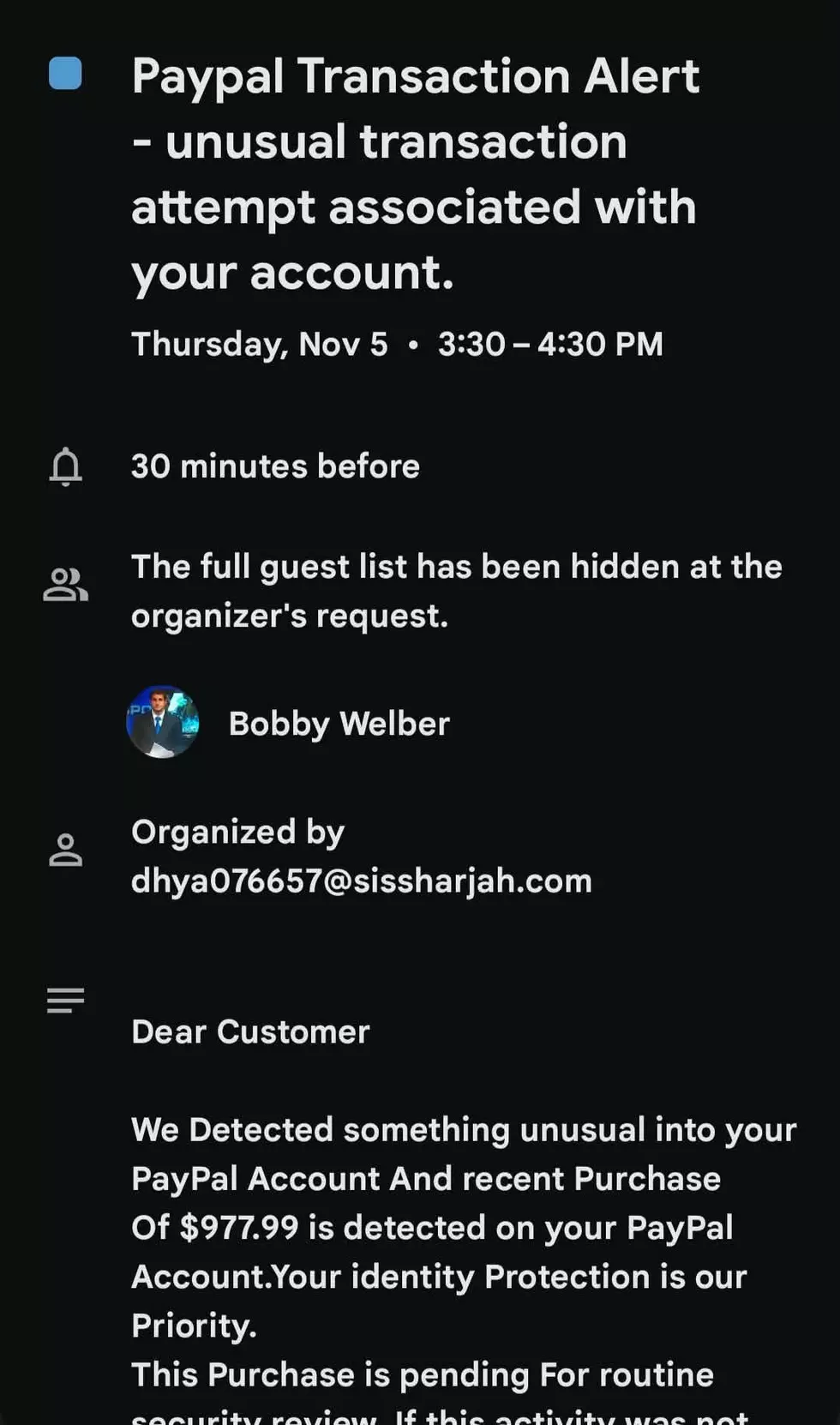
A new scam is making its way onto Google Calendars, and it is designed to make people believe someone has charged hundreds of dollars to their PayPal accounts.
I recently received one of these suspicious calendar invitations. It claimed there was an unusual PayPal transaction for nearly $1,000 that was pending on my account.
It gave me a phone number to stop the payment. I quickly checked my PayPal and realized I had no pending payments, assumed this was a scary new scam, and ignored it.
For all the news that the Hudson Valley is sharing, make sure to follow Hudson Valley Post on Facebook, and download the Hudson Valley Post Mobile App
Then I received another one. This time, the message was even more elaborate, complete with an invoice number, a supposed $499.99 charge, and a claim that I had purchased something called "Paypal BTC."

The message claimed the transaction had already been paid and that my account was active.
It even included a customer support phone number with instructions to call immediately if I did not recognize the transaction.
There is one major problem. These messages are not legitimate PayPal billing notices. They appear to be part of a phishing scam designed to get people to call a fraudulent customer support number.
And the fact that these warnings are showing up directly in Google Calendar makes the scam particularly concerning.
How the Google Calendar PayPal scam works

Scammers appear to be taking advantage of Google Calendar's invitation system.
Rather than simply sending a traditional spam email, they send a calendar invitation to an email address. If the recipient's calendar settings automatically accept invitations from everyone, the fraudulent event can appear right alongside legitimate appointments.
In my case, the calendar event claimed an automatic payment would be processed within 24 hours. It included a phone number and instructed me to contact support to cancel the transaction.

The organizer was an unfamiliar email address that had nothing to do with PayPal.
Both messages used the same basic strategy: Make the recipient believe there is a problem with their money and convince them to call a number immediately. That is exactly what scammers want.
What happens if you call the number?
The goal is likely to connect you with someone pretending to be a PayPal representative.
They may claim they can reverse the charge or protect your account, but instead attempt to obtain personal information, financial details, or access to your computer.
PayPal specifically warns consumers about fraudulent invoices and payment requests that include alarming messages instructing people to call fake customer support numbers.
PayPal says consumers should never call phone numbers included in suspicious invoices or payment requests. Instead, they should check their accounts directly through the official PayPal website or app.
How to stop fake invitations from appearing in Google Calendar
The good news is that you can change your Google Calendar settings to help prevent these invitations from automatically appearing.
Google offers a setting that controls who can automatically add invitations to your calendar.
Here's what to do:
- Open Google Calendar in a web browser.
- Click the Settings gear and select Settings.
- Under General, select Event settings.
- Find the section labeled "Add invitations to my calendar."
- Change the setting from "From everyone" to "Only if the sender is known."
Google considers known senders to be people in your contacts, people within your organization, or people you've previously interacted with.
There is also a stricter option called "When I respond to the invitation in email." With this setting, invitations will not be added to your calendar until you respond to the email notification.
You may still receive the invitation email, but it won't automatically show up as a calendar event.
Don't Answer Calls From These Phone Numbers
Gallery Credit: Travis Sams
Bah Humbug! 12 Holiday Scams To Be Aware Of This Year
The Better Business Bureau's '12 Scams of Christmas'
Gallery Credit: Kaylin

More From WRRV-WRRB